Left block - scheme settings
2 min read1 article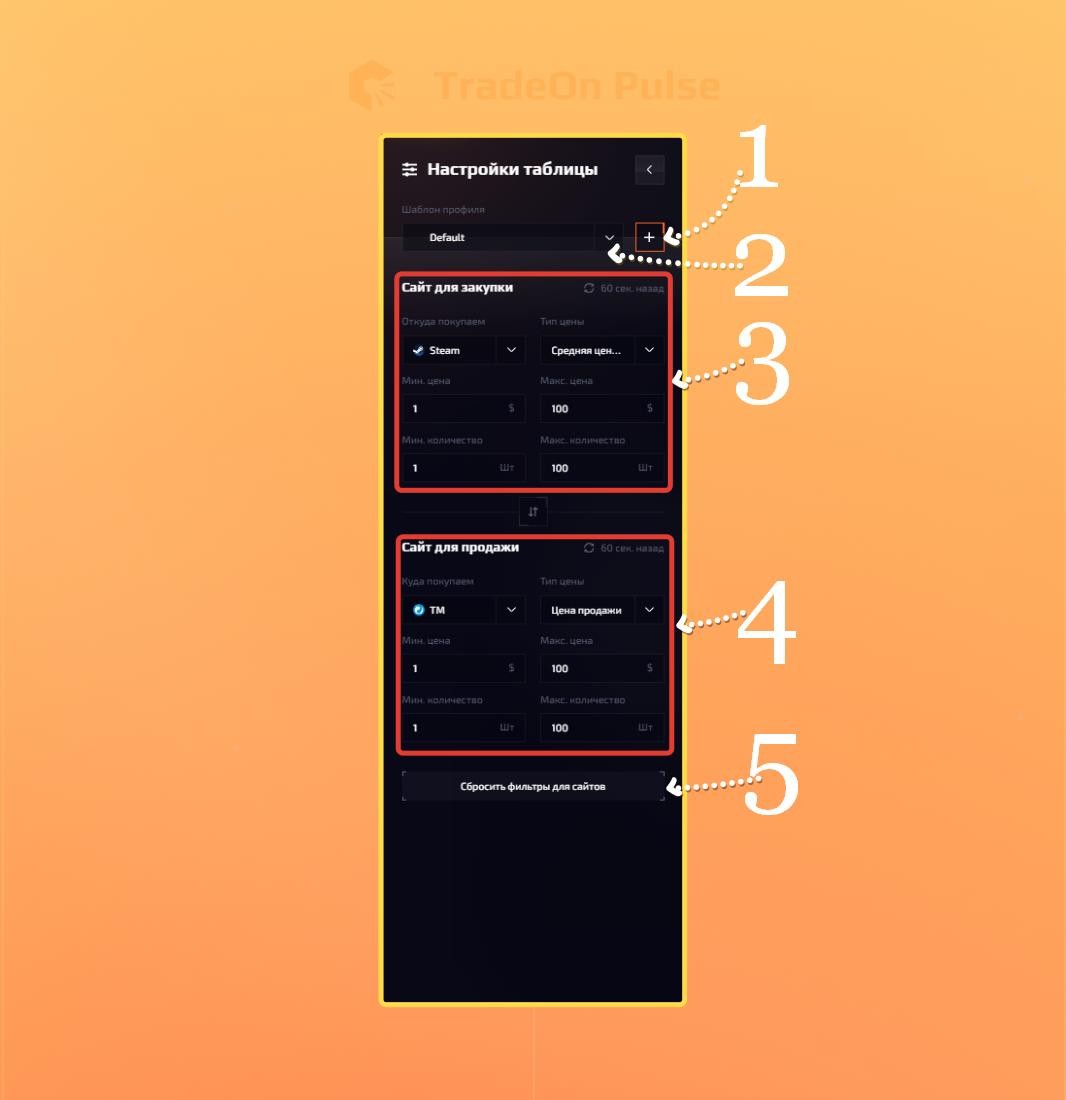
Left settings block
The settings themselves can be divided into 3 main blocks, plus a couple of buttons for interacting with them; let's go through them:
Profile templates - let you save all your settings for quick use later. You can fine-tune the settings you need for your scheme and later switch to it just by opening the template.
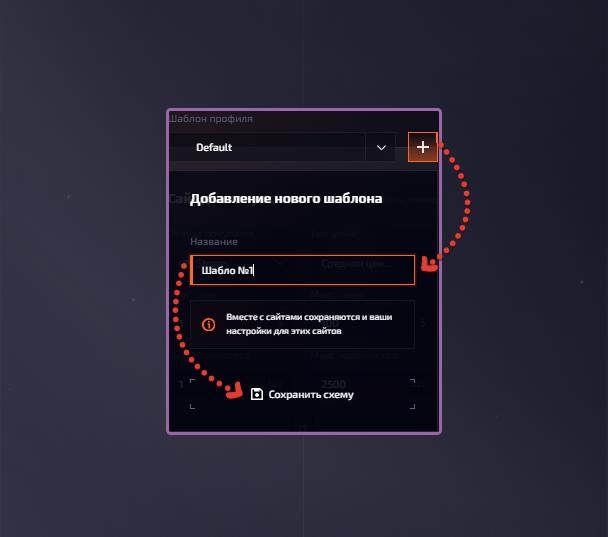
To create a template, click + -> enter the template name -> click "save scheme".
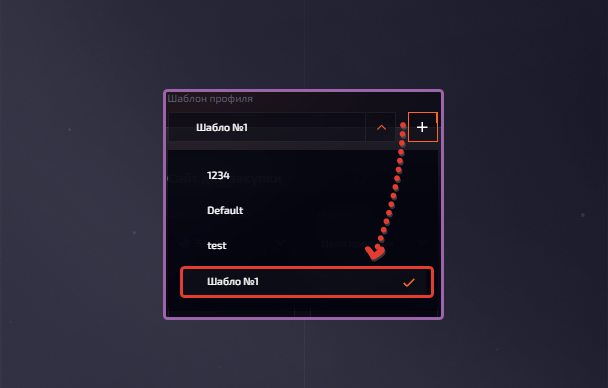
Choosing templates. All created templates are saved; to choose one of them, click the "V" icon -> select the template you need.\
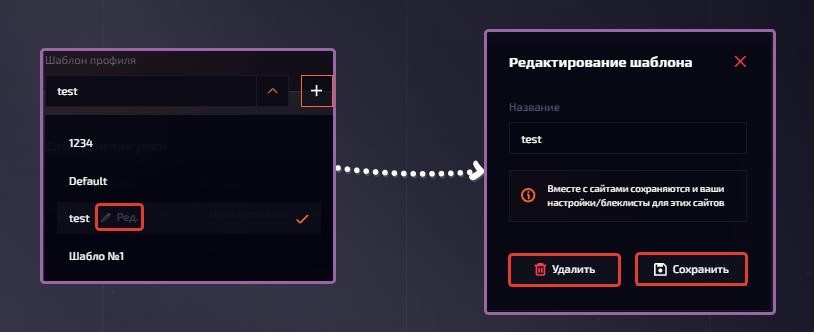
When you hover over the template name, you can edit the name or delete the template — click the pencil to do so.
Buying site - this whole block lets you specify the data for the site you want to buy from.
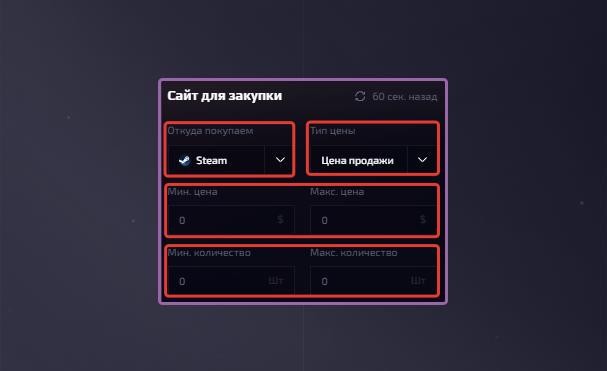
"Where we buy" - specify the site you want to buy items from.
"Price type" - the sale price the bot will use as a baseline when analyzing items.
Read more about the price type below. Read more here.
"Min. price - Max. price" - the minimum and maximum item price on the buying site.
"Min. quantity - Max. quantity" - the minimum and maximum number of items in stock on the buying site.Swaps the "Buying site" and "Selling site" settings, which lets you switch quickly without rewriting the settings for each block.
Selling site - almost the same block as "Buying site", all the same settings; the only difference is that you set the parameters for the site where you want to sell.
Reset all filters - this button lets you quickly reset all the settings you entered, which greatly speeds up your work with the table, for example when searching for profitable trade combinations.