Upper block - table settings
2 min read3 articles
"Items found" - shows the number of items found according to your settings.
"Filters" - more detailed settings for the table itself. Lets you set up color indication, sort by trade ban and item type. You can learn about setting up filters here.
"Blacklist" - lets you remove an item or item type from the table. Read more about how the blacklist works here.
"Visual settings" - a button containing the visual settings of the table itself; at the moment it includes 2 settings:
1) Show the total quantity or the number of offers at the best price - lets you choose which number is displayed next to the item price.
2) Highlight time for opened sites - sets how long an opened link in the "sales" column stays highlighted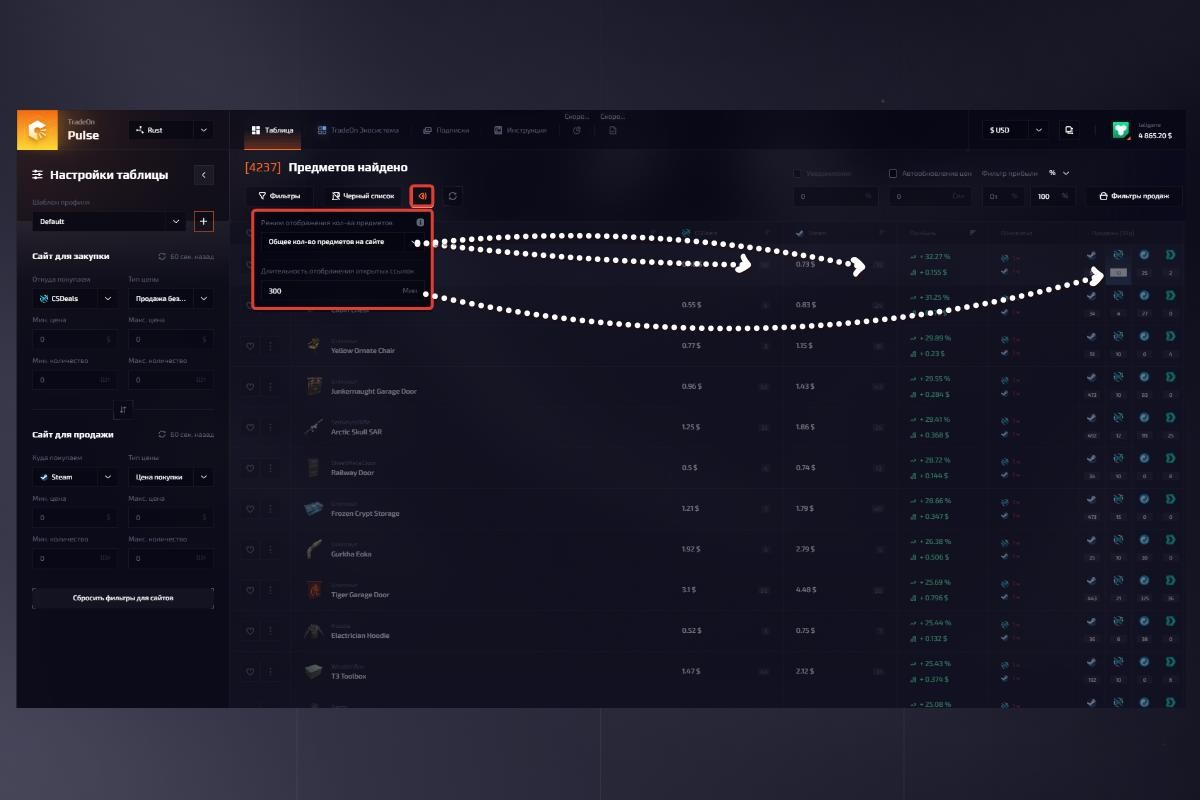
"Refresh table" - clicking the button fully refreshes the items in the table.
"Notifications" - when enabled, after the items are refreshed you receive a notification if an item above the specified percentage is found.
To enable notifications, click the checkbox -> specify the profit percentage above which you will be notified.
"Auto-refresh prices" - lets you set a timer, at the end of which the table refreshes automatically.
To enable auto-refresh, click the checkbox -> set the timer in seconds.
With auto-refresh enabled, only the first 100 items from the top of the list are refreshed.
- "Profit filter" - lets you specify the minimum and maximum profit percentage of an item. All items below the minimum profit percentage are hidden from the table, and likewise all items above the maximum profit percentage are hidden from the table.
- "Sales filter" - lets you sort items by the number of sales on any of the available selling sites over the suggested period of time. Read more here.
\