Items table
2 min read2 articles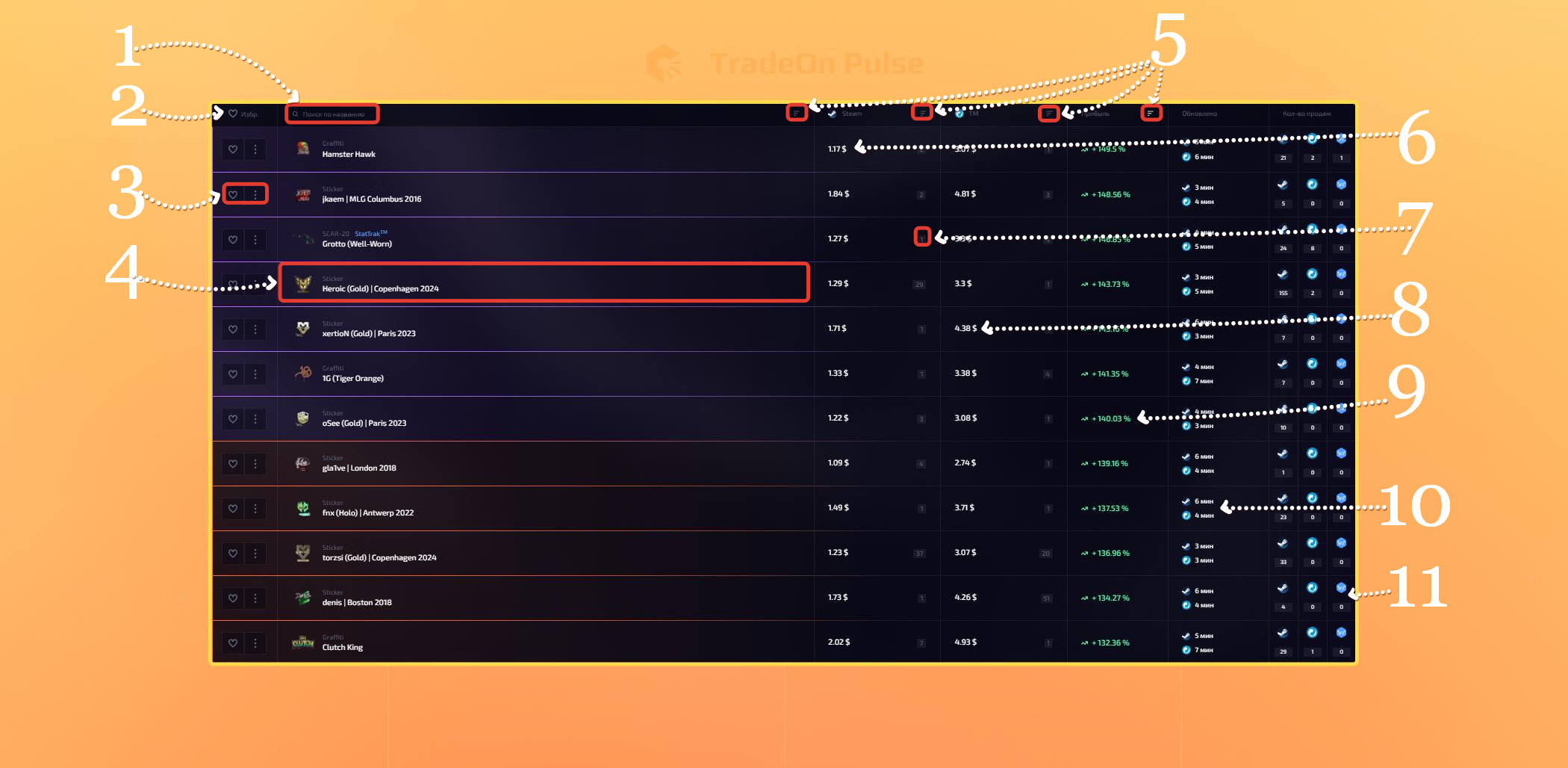
Search by name — lets you find a specific item in the table; you can enter a specific name, an item type or a wear quality.
Sort by favorites — when clicked, moves all items added to favorites to the top.
Extra functions — clicking the heart adds the item to favorites, clicking the trash can removes the item from the table. Read more about how the extra functions work here.
Item name — shows the name as well as the 3D model of the item. When you hover over any part of the field, a copy button appears.
Sorting — next to each column there is a sort control; clicking the button sorts items "low to high" or "high to low", the 3rd click returns items to the default order; when sorting by name, items are sorted alphabetically in English from A-Z or from Z-A.
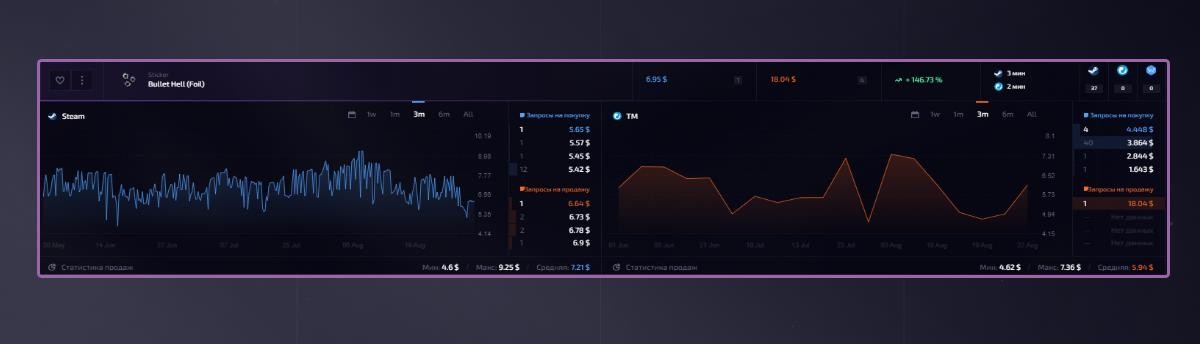
Item purchase price — shows the item price on the buying site; clicking the price opens detailed item statistics. You can learn about item analytics here.
Items in stock — next to each price, the number of items available on the site at that price is shown.
Item sale price — shows the item price on the selling site; clicking the price likewise opens more detailed statistics.
Profit percentage — shows the profit percentage you get if you buy the item on the buying site and sell it on the selling site. The percentage already takes the sale fee into account.
Update time — shows when the item data was last updated.
Number of sales — shows the number of sales on the sites you selected over the period of time you chose in the "sales filter" settings. Clicking one of the site icons opens a link to the item on the site you selected.